 Before
 After
Remove objects & people
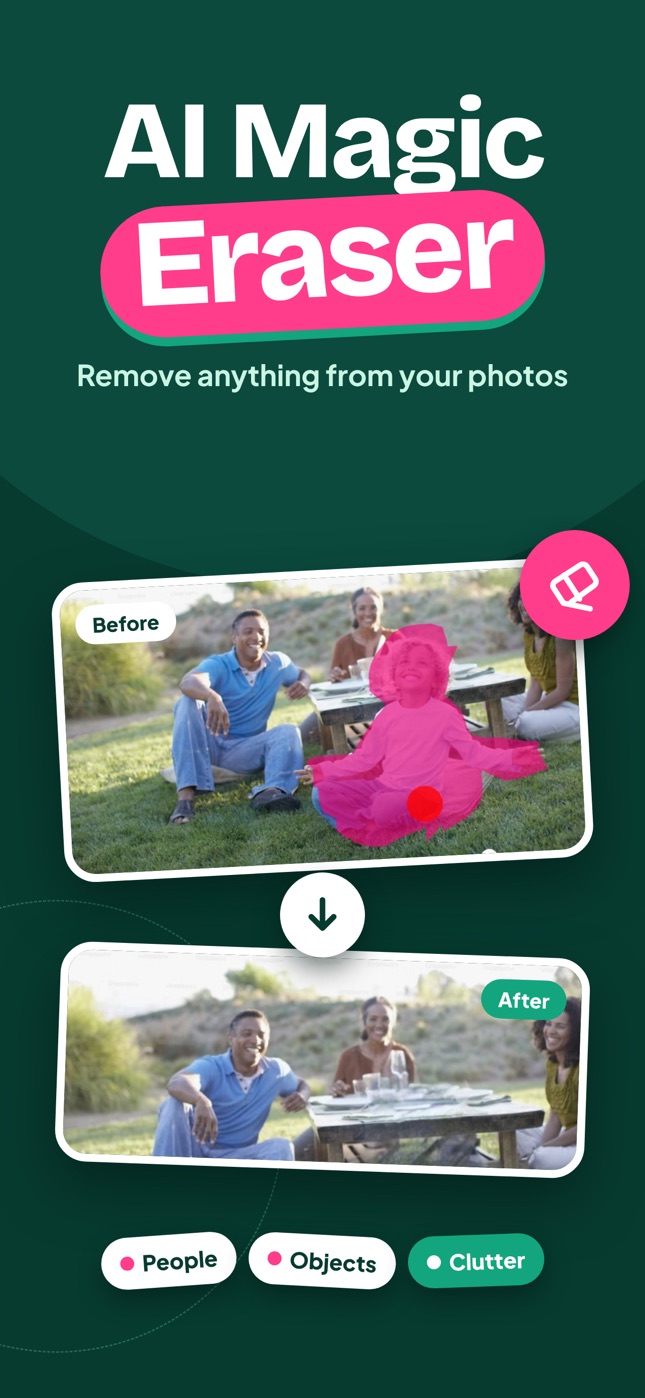
Paint over a photobomber, a power line, a stranger or a mess on the table. The AI object remover erases it and rebuilds the background behind it.
Brush over people, objects or clutter and AI fills the gap so naturally nobody can tell. Replace things with a simple prompt and remove backgrounds in one tap.
BeforeAfterThree tools, one app
Erase Spark puts the three edits people actually need into one simple app: remove what you don't want, replace it with something better, or cut the subject out completely.
BeforeAfterPaint over a photobomber, a power line, a stranger or a mess on the table. The AI object remover erases it and rebuilds the background behind it.
 Before
 After
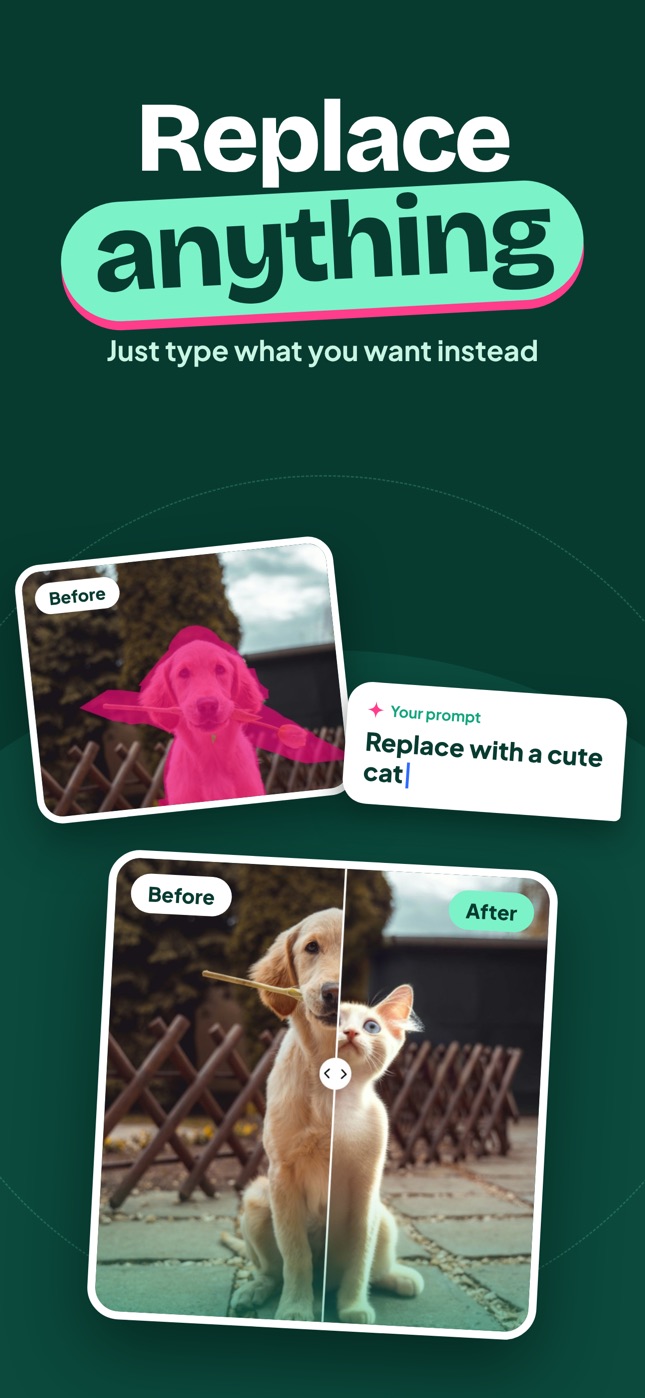
Brush an area, type what you want instead – "a cute cat", "a vase of flowers", "turn it into a donut" – and AI generates it in place, matching light and perspective.
 Before
 After
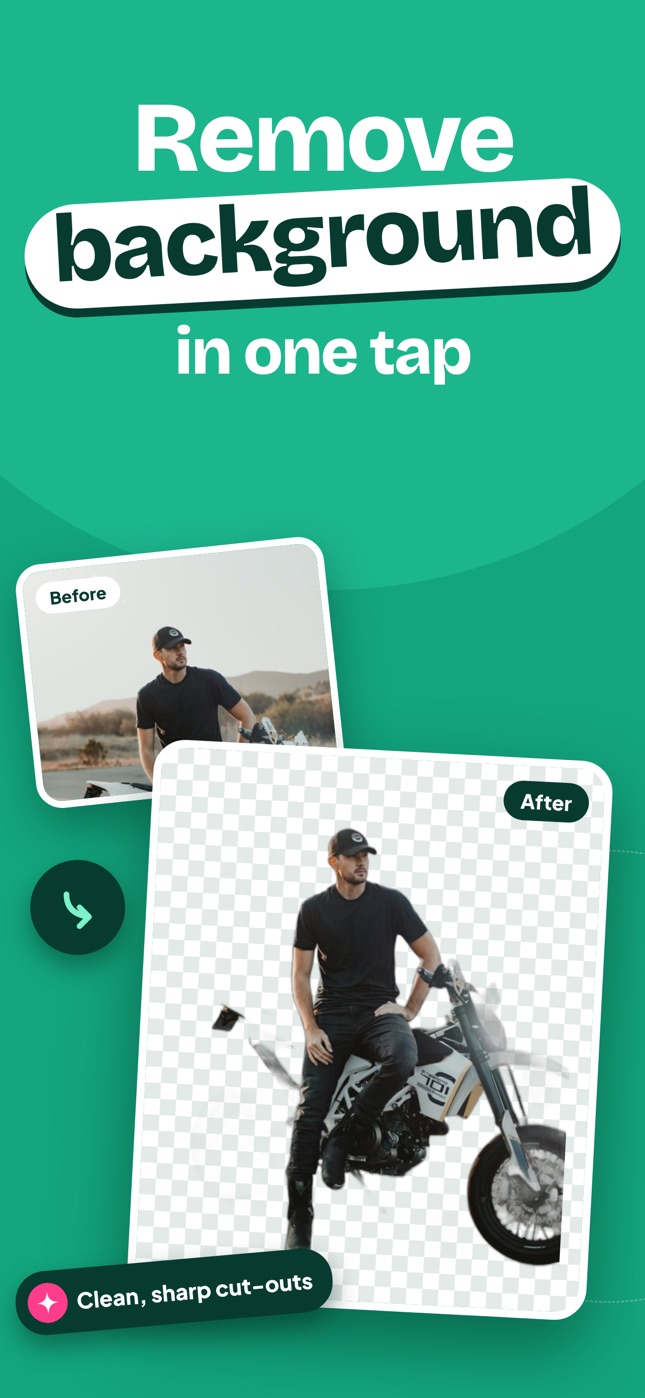
Get a clean, sharp cut-out of people, pets and products for profile pictures, marketplace listings, stickers and designs.
See the difference
Pick a tool and drag the handle to see exactly what the AI changed.
Example edits made with Erase Spark on sample photos.
How it works
No layers, no clone stamp, no learning curve. Three steps and your photo is clean.
Choose a picture from your library or take a new one. Pick a tool: erase, replace or remove background.
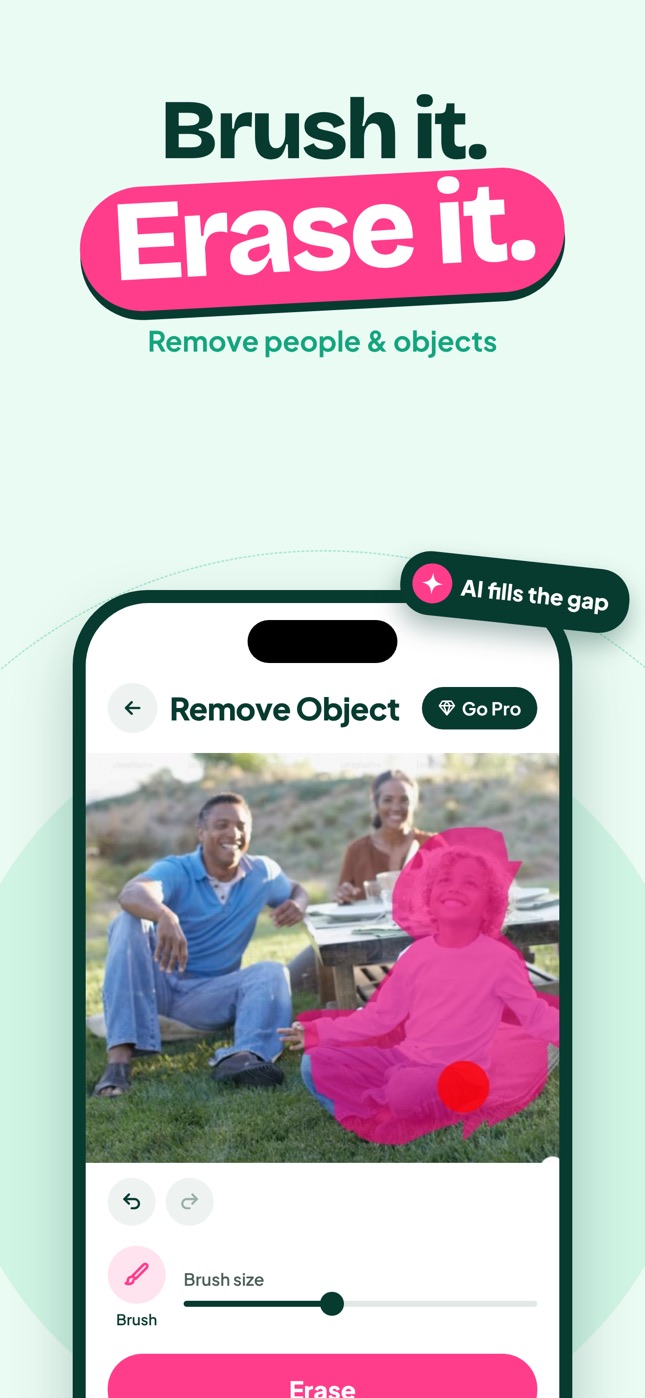
Paint over the object with your finger. Adjust the brush size for small details, undo and redo freely. To replace, describe what should appear instead.
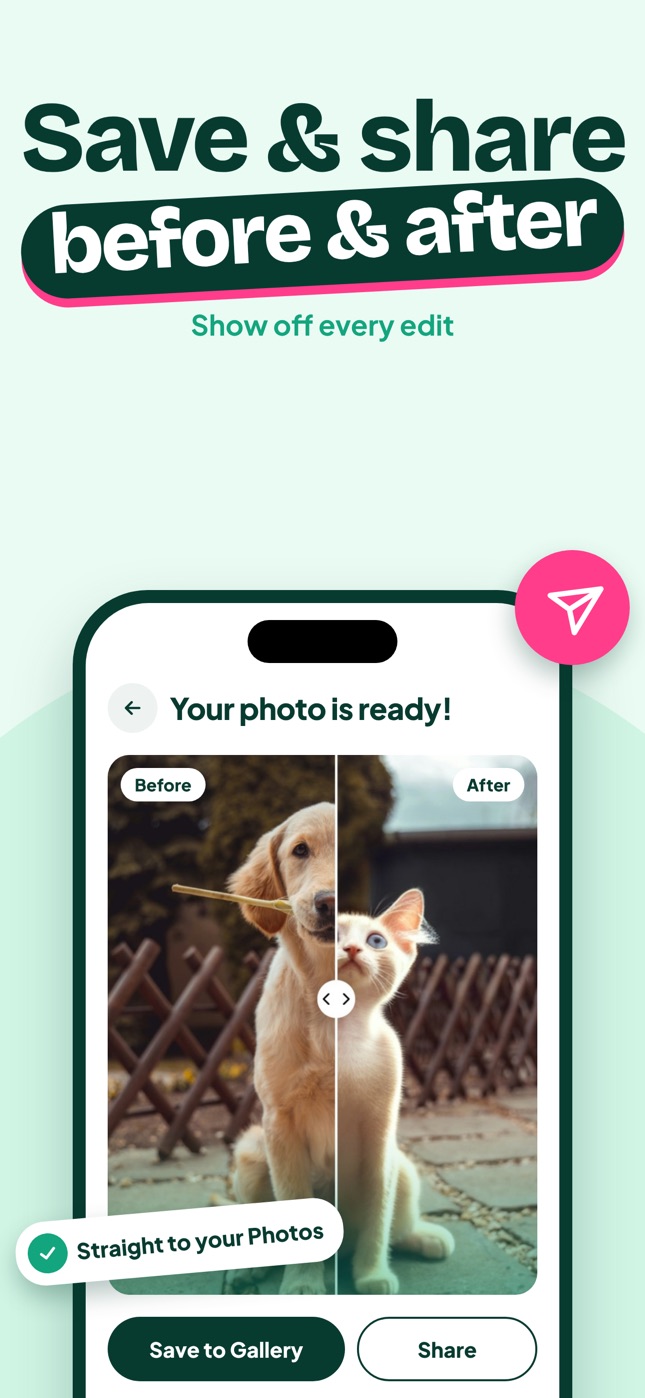
AI fills the gap in seconds. Compare before and after, then save to your Photos or share straight to your friends and socials.
Replace anything
Made for real photos
Remove tourists and strangers from landmarks so the view is all yours.
Clean up a photobomber, a trash can or a sign that ruins a perfect moment.
Remove the background for marketplace listings, online stores and catalogs.
Get a cleaner feed: erase clutter, cables and anything that steals attention.
Hide mess, wires and personal items before you share a room or listing.
Swap objects for something unexpected and create fun, eye-catching images.
Save & share
Every edit ends with a side-by-side comparison. Save the result straight to your Photos in full quality or share it in one tap.
FAQ
Erase Spark is an AI magic eraser app for iPhone and iPad. It removes unwanted objects and people from photos, replaces areas with anything you describe, and removes backgrounds in one tap.
Open Erase Spark, choose Remove Object, pick your photo and brush over the thing you want gone. Tap Erase and the AI removes it and fills the background naturally. Then save the photo to your gallery.
Yes. Brush over a person, a photobomber or a crowd of tourists and the AI rebuilds what was behind them. For best results, cover the whole person including their shadow.
Paint over the area you want to change and type a short prompt such as "replace with a cute cat". The AI generates the new object in the same spot, matching the lighting of your photo.
Yes. The Remove Background tool detects the subject automatically and gives you a clean cut-out of people, pets or products in one tap.
Erase Spark is free to download from the App Store. An optional Pro subscription unlocks more edits and extra features; see the App Store listing for current pricing.
Yes. Erase Spark runs on iPhone and iPad, and the app is available in more than 30 languages.
Erase Spark edits only the area you brush and keeps the rest of your photo intact, so you can save a clean result to your Photos and share it anywhere.
Download Erase Spark and clean up your first photo in seconds.